
Your year on iPhone
How to make a year in review from your photos on iPhone
Search for the year in Photos, put your favorites in an album, then play that album as a Photos movie. Adjust the music and length before sharing from the movie player. Playing a slideshow does not by itself save a video: check the exported file before sending your year in review.
Last updated
Lumo is a free, private family album for iPhone, iPad and Android. Send one link and the whole family can join.
Invited to a Lumo album? Open it in any web browser: app.lumomagic.com
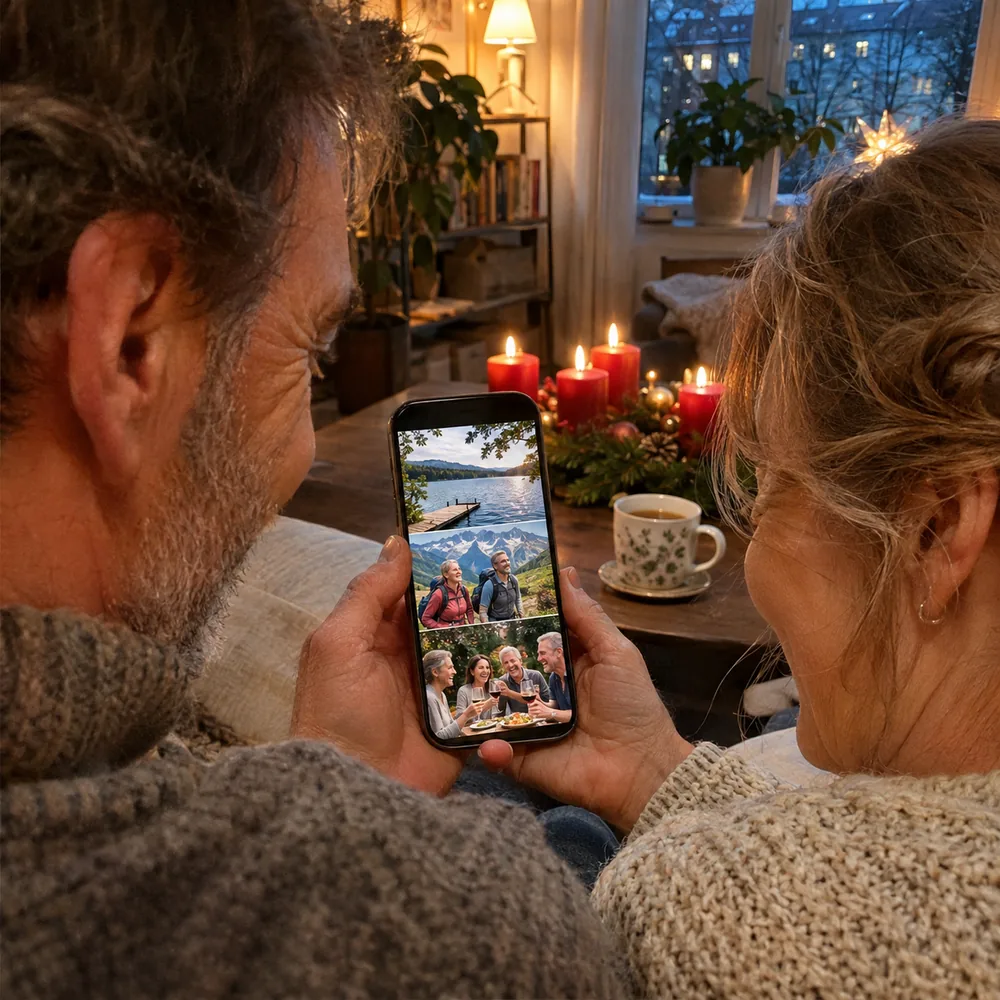
1. Find the year’s photos and make an album
Open Photos, tap Search and enter the year, such as 2025. Apple’s search guide supports a month or year as a search term. Browse the results and select the photos and short clips you want; check the beginning and end of the year as well as the big occasions.
- Give the selection a home in an album named for the year. On iOS 26 and 27, open Collections → Albums → + → New Album, name it, add your selection and tap Create. On iOS 18, scroll down to Albums in the main Photos screen.
- You can also start with existing holiday or celebration albums and choose the photos you want from each. Keep a mix of everyday scenes, places and people so the result feels like your year.
2. Turn the album into a Photos movie
Open your year album. On iOS 18, tap “Movie”. On iOS 26 and 27, open the album from Collections and tap its Play button. Photos assembles a slideshow movie with music. Watch the whole draft before deciding what to keep.
This album route lets you choose the starting photos without an Apple Intelligence prompt. Apple documents the iOS 18 album route and the current movie controls.
3. Choose music and length for your version
Tap the playing movie to reveal its controls. The menus changed between versions; use the path that matches your iPhone.
- iOS 18 and 26: open the music-mix control, then the music button to choose a song. For length, open More (…) and choose Short, Medium or Long when offered.
- iOS 27: tap Customize → Music → Change Song. For length and transitions, use Customize → Transition and Duration.
- Length options depend on the selection, and changing length can change which photos appear. Watch again to check the people, crops and ending. Apple Music subscribers have additional song choices; if Photos asks for a different soundtrack when sharing, choose one it offers and preview again.
Just want to play a slideshow?
For a quick viewing session, select photos in Photos and open More (…). On iOS 18 and 26, choose “Play as Slideshow”. On iOS 27, choose “Start Slideshow”; an album’s More menu offers it too.
In iOS 27, tap the playing slideshow, then Customize → Transition & Duration to adjust timing, or Customize → Music → Choose Song. More → Share is also available. Apple’s iOS 18 instructions and iOS 27 instructions describe different controls.
4. Share the movie, then check the saved video
Share while the movie is playing: tap the screen, then More (…) → Share Movie on iOS 18, or More (…) → Share on iOS 26 and 27. Choose AirDrop, Messages or Mail. Sharing selected photos from the album grid sends those items instead of the assembled movie. See Apple’s movie-sharing instructions.
- To keep a copy, look for Save Video in the movie’s share sheet. If offered, save it and wait for export to finish.
- Open the saved video in your library and play it from start to finish. Check that it is one video with the intended sound and photos, rather than a group of still photos.
- If your Photos version offers no video-saving option, use the album movie’s sharing route above. For a separate file with more editing control, make the movie in iMovie and export it with Save Video or Save to Files.
Playback and export are different outcomes
A slideshow running on your iPhone, or streamed to a television with AirPlay, is a viewing session. An exported video is a separate file you can reopen and send. iOS 27 includes sharing in the slideshow player, so it is no longer accurate to say that every Photos slideshow is playback-only. The useful check is whether you saved or sent a playable video.
Where Lumo fits: the whole family’s year in one album
Your iPhone can only use photos available in its library. In Lumo, the family can add photos from their own phones to one private shared album. Hearts and comments help you choose favorites together, and an album for the year keeps that selection easy to find.
Save your chosen photos from Lumo to your iPhone, one at a time, then use them in the Photos album above. Lumo gathers the family’s photos; you make and export the movie in Photos or a video editor.
Gather the whole family’s year in photosSources and dates
The linked Apple Support pages were checked on 10 November 2026. The links identify the iOS version where relevant; this is a source-check date, not an Apple publication date. For the older music and length controls, see the iOS 18 guide and iOS 26 guide. Menus and sharing options can vary with software updates.
Questions
Do I have to wait for an automatic year-in-review movie?
No. Make an album from the year’s photos and start its movie yourself. You can choose the photos before playing it.
Why did my family receive individual photos?
Sharing from the album grid sends the selected items. Start the movie and use its sharing menu to send the assembled video.
Can I set an exact number of seconds for every photo?
The movie’s length presets do not give each photo an exact duration. iOS 27 adds slideshow timing controls. For precise editing, use a video editor and check the exported result.
Start your family album.
Free. Private to your family. No ads, ever.