
For new families
Share newborn photos with grandparents, wherever they live.
Start with one photo you want to share and invite grandparents to the same private family album. In Lumo, they can sign in from a phone or browser, see the photo and leave a reply. You can add more whenever it suits you.
Last updated
Lumo is a free, private family album for iPhone, iPad and Android. Send one link and the whole family can join.
Invited to a Lumo album? Open it in any web browser: app.lumomagic.com
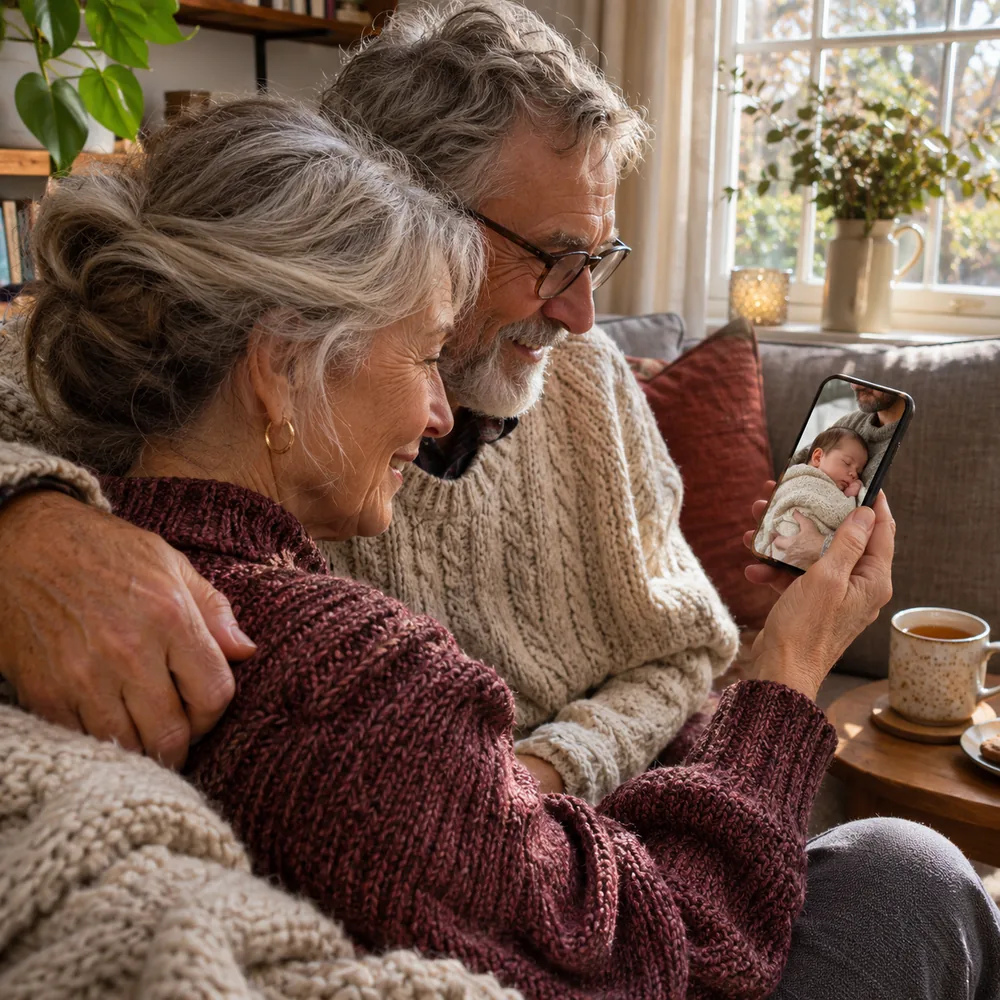
Start with a photo and a familiar caption
Create your family album and add a baby photo you are comfortable sharing. A caption such as “At home” or a calendar date gives grandparents context. Both parents can add photos to the same album.
Help grandparents open the invitation
Send the invite privately. Grandparents can open it on their phone or choose “Continue in your browser”, then sign in with Apple, Google or email. If approval is required, an authorised family member needs to accept the request. On the first visit, check together that they can see the photo; they can bookmark the album in their browser to return.
Let the conversation fit each household
Grandparents can leave a heart or a comment beside the photo when it suits them. Comments can be translated on request, so relatives abroad can join the conversation too. The photos stay in the album for another visit; there is no need to send a new batch to each person.
A first visit, step by step
Try the invitation together, in person or on a call, using the phone or computer the grandparent normally uses. Start with one photo so you can check the whole journey without uploading a large batch.
- Open the private invitation and check the family name. For browser access, choose “Continue in your browser”. If the invitation has expired, ask the person who sent it for a new one.
- Sign in or create an account using Apple, Google or email. If you choose email and a password, open the verification email and confirm the address before continuing. Keep the account details with the grandparent.
- Follow the joining steps. If a request is awaiting approval, an authorised family member needs to let you in; creating another account will not speed this up.
- Open the first photo together and try a heart or a short comment if you like. Bookmark the album, close it and open it again to check that the grandparent can return independently.
Choose what to share, at a pace that suits you
A quiet moment at home, someone close holding the baby or a detail from a walk can give relatives something to enjoy without a long update. Choose a small selection rather than every similar shot. Before adding a photo, look for details you would rather keep to yourself, such as an address on a parcel or paperwork in the background.
There is no required schedule. Add a photo when you want to share it, or a few together when you have time. Tell grandparents that viewing without replying is welcome too. Agree that a quiet week needs no explanation, and let each household decide when to open the album.
Different phones, languages and privacy preferences
An iPhone, Android phone and browser can access the same invited family album. Test the invitation on each relative’s usual device. Send it directly to the intended person and review who has joined before adding more photos. A family album is shared with its members; a caption naming one grandparent does not make that photo visible only to them.
In families using different app languages, a relative can request a comment translation with “Translate” when it is available. Translation is not automatic. Read the notice before the first translation and check the original if a name or meaning seems wrong. A short, clear caption can help everyone follow the photo even when they prefer not to comment.
Questions
Are the original photos kept?
Lumo keeps originals in their original quality. Downloading originals requires Lumo Pass, which covers the family album.
Can a private album prevent someone from forwarding a photo?
No. Agree with relatives which photos should stay within the family. Album access controls do not prevent screenshots or someone sharing a copy elsewhere.
Do grandparents have to install the app?
No. They can open their private invitation in a browser and sign in there. Email-and-password accounts need email verification. Complete any joining approval shown, then bookmark the album for another visit.
Should I send a new link for every photo?
No. Once grandparents have joined, they can return to the same family album to see the photos you add. A new invitation may be needed if the first one expires before they join.
Start your family album.
Free. Private to your family. No ads, ever.