
Free printable signs
Free QR photo signs for weddings and parties.
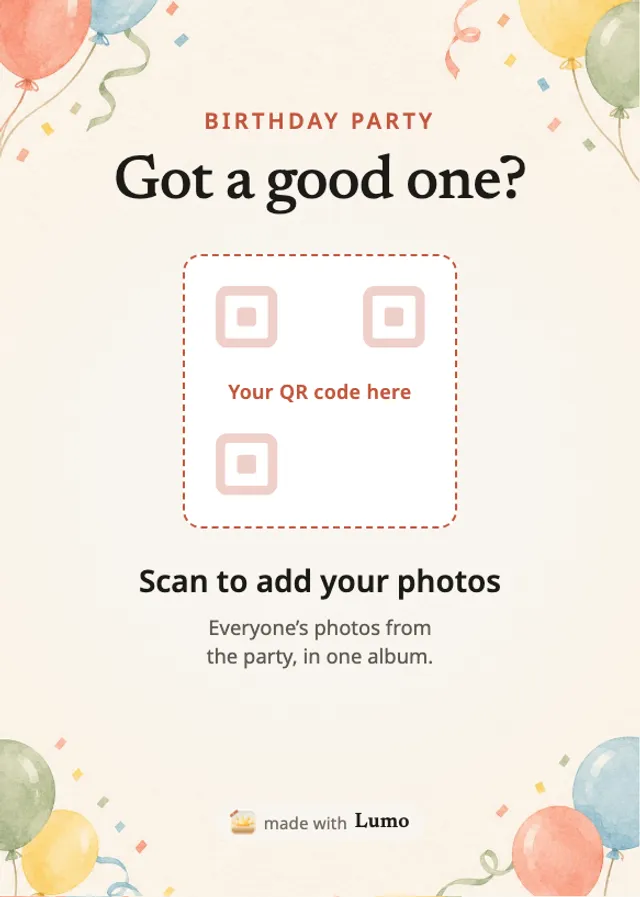
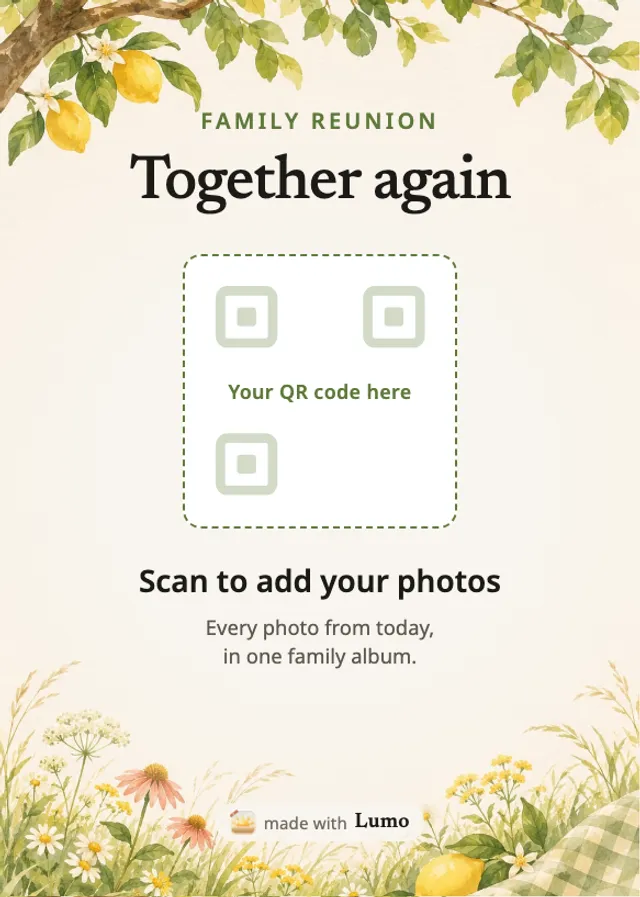
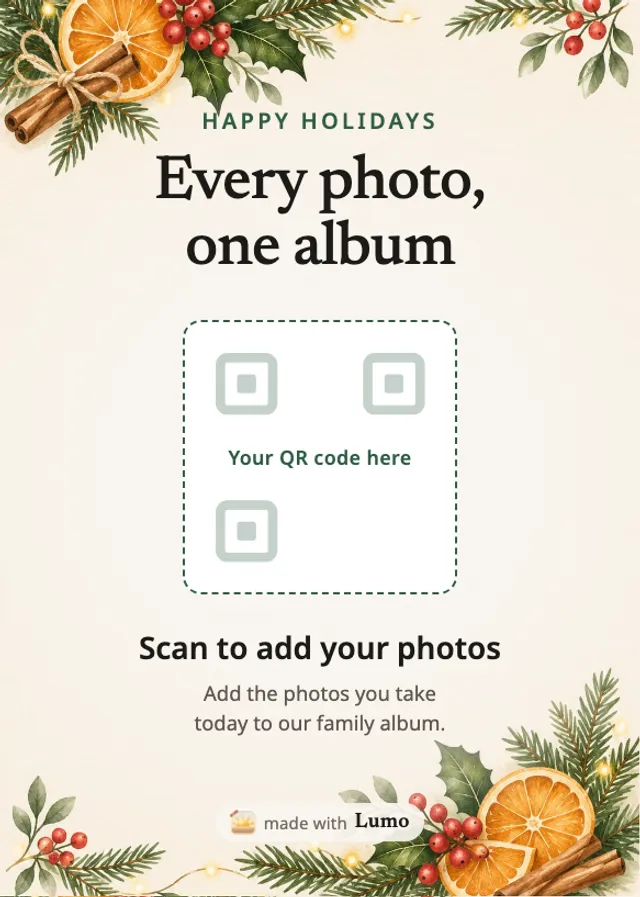
Download a free sign, put your event album’s QR code from Lumo on it, and stand it on the tables. Guests scan the code and add the photos they take to one private album, in the free app or in their browser. There are four designs: wedding, birthday party, family reunion and holiday gathering, each a PDF with A5, A6, 5×7 in and 4×6 in pages.
Lumo is a free, private family album for iPhone, iPad and Android. Send one link and the whole family can join.
Invited to a Lumo album? Open it in any web browser: app.lumomagic.com
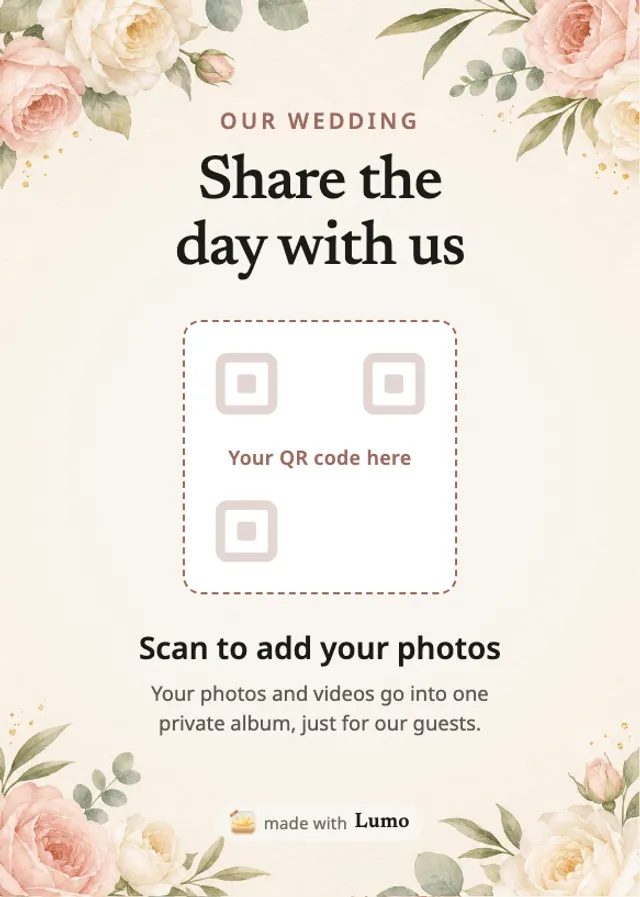
Choose a sign
Each PDF has four pages, one for each size: A5 and A6, and 5×7 in and 4×6 in for the US and Canada. Print the page you need. The frame in the middle is where your QR code goes.
Wedding sign (PDF) · Birthday party sign (PDF) · Family reunion sign (PDF) · Holiday gathering sign (PDF)
Get your album’s QR code in Lumo
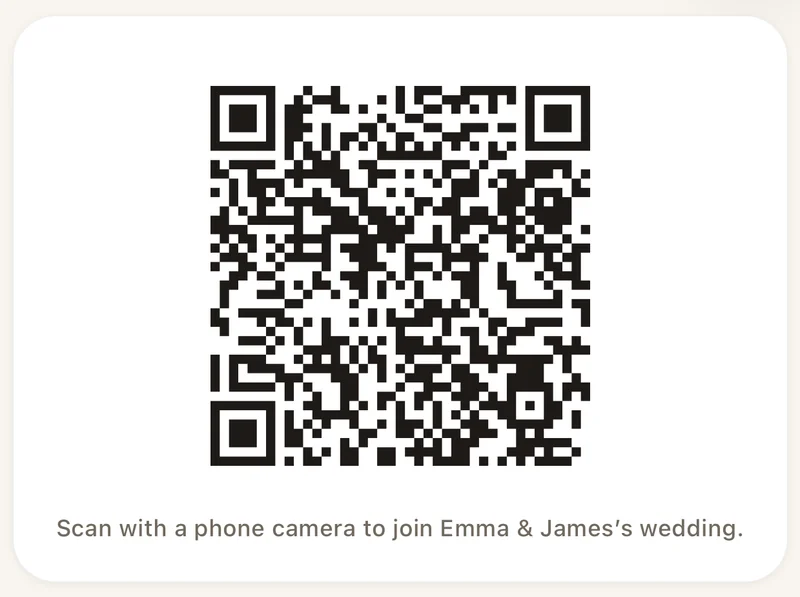
In Lumo, tap your family name at the top of the Family tab, then New event, and give it a name such as “Anna & Ben’s wedding” or “Grandma’s birthday”. Tap Create event, then Show a QR code, and take a screenshot of the code.
Invite links and their QR codes stop working after 30 days, so make the code within a month of the day. If you made one earlier, make a new one and use that.
Put the code on the sign
- On a computer: open the PDF in Canva, Adobe Acrobat or Preview on a Mac, place your QR screenshot over the frame, crop it to just the code, and print.
- By hand: print the sign, print the QR code at about the size of the frame, and glue it on. It takes a few minutes for a handful of tables.
- Keep the code at least 3 cm (1.2 in) wide, dark on white, and away from shiny lamination, which reflects light.
- At home, print on card at 100% or “Fit to page”. A print shop can use the PDF as it is: every page has 3 mm of bleed.
- Before the day, scan the printed sign with two different phones.
Where to put the signs
A small A6 or 4×6 sign on every table, and a bigger A5 or 5×7 sign at the entrance, by the cake and at the bar. The more places guests see the code, the more photos end up in the album.
What guests see
Guests point their phone camera at the code and the invite opens. They join in the free Lumo app, or choose “Continue in your browser” and add their photos at app.lumomagic.com. Everything they add appears in one private album, in full quality and in the order it was taken.
Turn on “Only admins can let people in” if you’d like to accept each guest yourself. Nobody outside the album can see it.
How event albums workHow to make a QR photo sign
- Download a signPick a design and open its PDF.
- Make an event in LumoOn the Family tab, tap your family name at the top, then New event.
- Show the QR codeTap Show a QR code and take a screenshot.
- Add the code to the signPlace it over the frame in a PDF editor, or print it and glue it on.
- Print and testPrint on card and scan the sign once with your phone.
Questions
Are the signs free?
Yes. Download, print and use them for any wedding, party or family gathering. The event album in Lumo is free too.
Why isn’t there a QR code on the sign already?
Every event has its own code, and it opens only that event. The frame on the sign is a placeholder that doesn’t scan, so you put your own code there.
Can I change the words?
Yes. Open the PDF in an editor such as Canva and add your names or the date, or change the words. Keep the QR code large, on a plain background.
Does the QR code expire?
Yes, after 30 days, like every Lumo invite link. Make it within a month of the event, and make a new one if it runs out.
Do guests need the app?
No. They can choose “Continue in your browser” and join at app.lumomagic.com, signed in with Apple, Google or email. The free app works too.
Start your family album.
Free. Private to your family. No ads, ever.