
For smartphone class instructors
A free lesson kit: sharing photos with family, privately.
This free kit is for anyone who teaches a smartphone class, at a library, a community centre or a phone shop. It teaches one skill in about an hour: putting photos in a private shared album that the family can see on any phone, and asking the family to add theirs. The skill works with any shared album app; the examples use Lumo, which is free. There is a lesson plan, a practice album for the class and a one-page handout to print.
Lumo is a free, private family album for iPhone, iPad and Android. Send one link and the whole family can join.
Invited to a Lumo album? Open it in any web browser: app.lumomagic.com

What learners can do after the class
- Explain the difference between sending photos in a chat, posting them on social media and keeping them in a private shared album.
- Join a shared album from an invite link or a QR code.
- Look at the family’s photos, and reply with a heart or a comment.
- Add photos from their own phone.
- Ask their family to add photos, with a message they write themselves.
- Know who can see the photos, and how to leave an album or remove someone.
The lesson plan, about 60 minutes
- 5 minutes. Why: photos sent in group chats scroll away and lose quality, and social media shows them to more people than the family. A shared album keeps them in one place, for the people you choose.
- 10 minutes. How a private shared album works: someone starts it, invites the family with a link or a code, and only those people can see it. Show it on the projector or your own phone.
- 15 minutes. Join the practice album: learners scan the QR code or open the link, sign in, and look around. Pair up people who get stuck.
- 15 minutes. Add a photo: each learner takes a photo in the room (the plant on the windowsill, a cup of tea) and adds it. Then everyone hearts and comments on someone else’s.
- 10 minutes. Ask the family: each learner writes a short message asking their family for photos, ready to send at home.
- 5 minutes. Privacy and staying safe: who can see the album, removing someone, leaving an album, and not adding photos of other people without asking.
Before the class
- Make a practice album on your own phone and add a dozen photos that show no people: flowers, a view, the building, a meal. Don’t use your own family album.
- Print the handout, one for each learner.
- Ask learners to bring their phone charged and to know how they sign in on it: the Apple account password on an iPhone, the Google account on Android. Many can’t remember it, and that is the step that takes longest.
- Check the room’s Wi-Fi and write its name and password on the board.
- Try joining the practice album yourself from a second phone or a computer.
Choosing an album app for the class
Teach the skill, not the app. Shared albums in the phone’s own photos app, albums in chat apps such as LINE, and family album apps all work on the same idea. For a mixed class, look for an app that:
- works on iPhone and Android, so nobody sits out;
- lets family look and add photos in a web browser, for anyone who can’t install an app;
- keeps photos private to the people invited, with no public feed and no ads;
- is free for what the class does: joining, looking, adding photos, hearts and comments;
- lets people leave an album, and the person who started it remove someone.
The worked example: Lumo
Lumo is a private family photo album on iPhone, iPad and Android, and in a web browser at app.lumomagic.com. It is free for everything in this lesson.
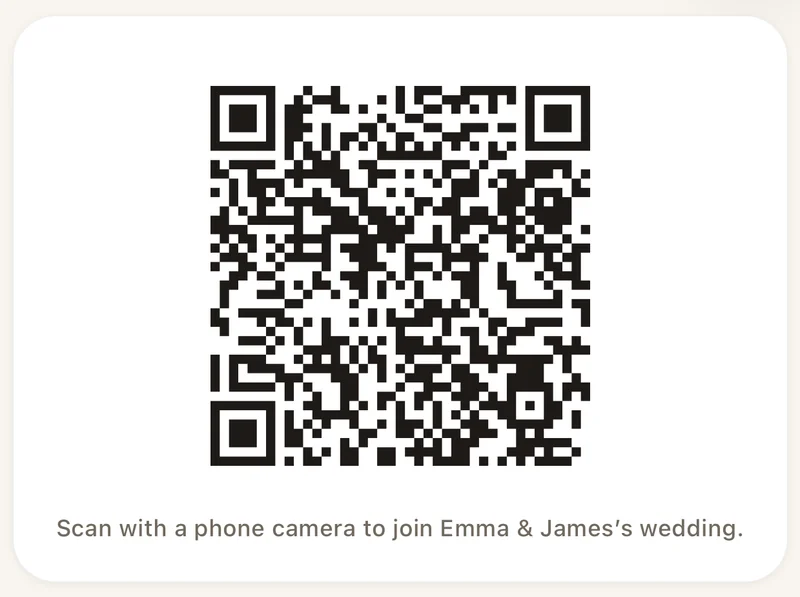
For the practice album, use an event album, which one QR code lets up to 500 people join: in Lumo, tap Wedding or event on the welcome screen (or, if you already have a family album, tap your family name at the top of the Family tab, then New event), name it “Practice album”, tap Create event, then Show a QR code. Put the code on the projector or on the board.
Learners scan the code with the phone camera. They can get the free app, or choose to continue in the browser, and sign in with Apple, Google or email. Every photo is placed on the day it was taken, and a heart or comment shows right beside the photo.
Invite links and QR codes stop working after 30 days, so make a new code for each month’s class. Everyone in the practice album can see each other’s names and photos: tell the class, and after the class remove learners or ask them to leave the album in Settings.
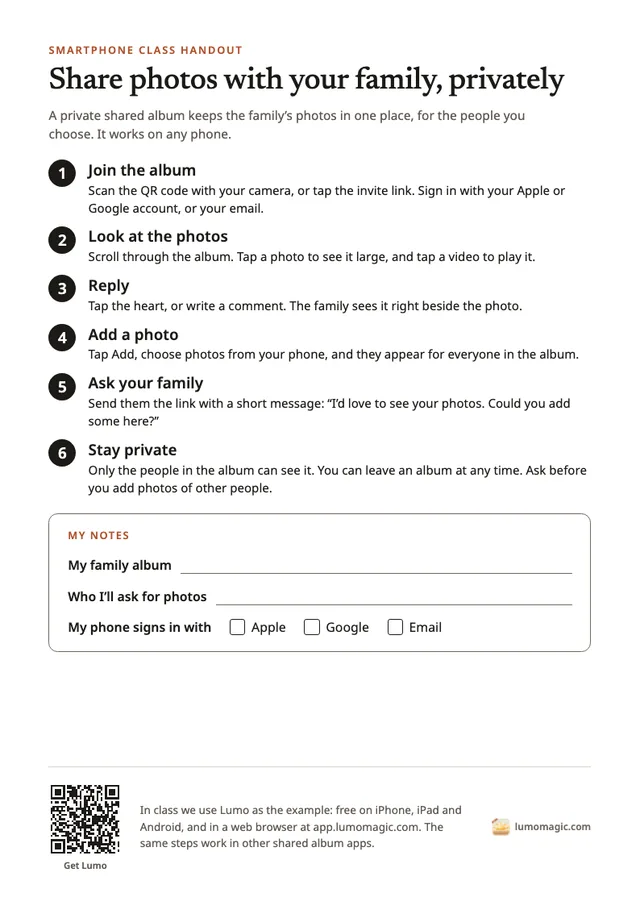
The handout
One page for learners to take home: the six steps of the lesson in large type, room to write their family album’s name and who to ask, and a short note on privacy. It names Lumo as the example and works for any album app.
Handout, A4 (PDF) · Handout, US Letter (PDF)
Print and copy it for your classes as often as you like, in black and white if you prefer.
After the class
The real lesson happens at home, when a learner’s family adds the first photos. Suggest that learners send their message the same day, and bring their phone next time to show what arrived.
Learners who want the family’s photos can start their own family album in the same way, and invite their family to it.
Grandparents: start the family album yourselfHow to teach sharing photos with family
- Make a practice albumPhotos with no people in them, and a QR code for the class.
- Explain private albumsChat, social media and a shared album: who sees what.
- Join and lookLearners scan the code and sign in, in the app or the browser.
- Add, heart and commentA photo from the room, then a reply to someone else’s.
- Write the messageEach learner asks their own family for photos.
Questions
Is the lesson kit free?
Yes. The lesson plan and the handout are free to use, print and copy for your classes.
Do I have to use Lumo?
No. The lesson teaches a skill that works with any shared album app. Lumo is the example because it works on iPhone, Android and in a web browser, and is free for everything in the lesson.
Do learners need an account?
To join a Lumo album, they sign in with an Apple or Google account they already have, or with an email address. Joining is free.
What if a learner can’t install apps?
They can do the whole lesson in a web browser at app.lumomagic.com, on the phone, a tablet or a library computer.
Will learners see each other’s photos in the practice album?
Yes, everyone in the practice album sees its photos and names. Use photos without people, tell the class, and remove learners or ask them to leave the album after the class.
Who can see our photos?
Only the people in your family album. Nothing is public, there are no followers, and photos are never shown to anyone outside your family.
Start your family album.
Free. Private to your family. No ads, ever.