
Shared photo albums
How to create a shared photo album everyone can add to.
A shared photo album lets several people add photos to one place. Here’s how to make one on iPhone, in Google Photos and as a private family album, and what each means for privacy and storage.
Free on iPhone, iPad and Android. Private to your family.
No app? Open your album in any web browser: app.lumomagic.com

What makes a good shared album
Before you pick one, decide what matters for your group:
- Everyone can add photos, not just the owner
- It works on every phone in the group
- Only the people you choose can see it
- Photos and videos stay in good quality
- Storage doesn’t turn into a bill
On iPhone: an iCloud shared album
Open Photos, go to Collections, then Shared Albums, and tap Add. Name the album, choose photos, set Sharing Options to invite people or share by link, and send the invitation.
Since iOS 27, people without an Apple device can join and add photos on the web. New albums keep full quality and count toward the owner’s iCloud storage, including what others add.
On Android or iPhone: Google Photos
Select photos, tap Create, then Album, name it, tap Share, and choose people by email or phone number. People with a Google Account can add photos and comments.
A share link can be opened by anyone who has it, without signing in. Photos in your library count toward your Google storage: 15 GB free, shared with Gmail and Drive.
For a family: a private family album
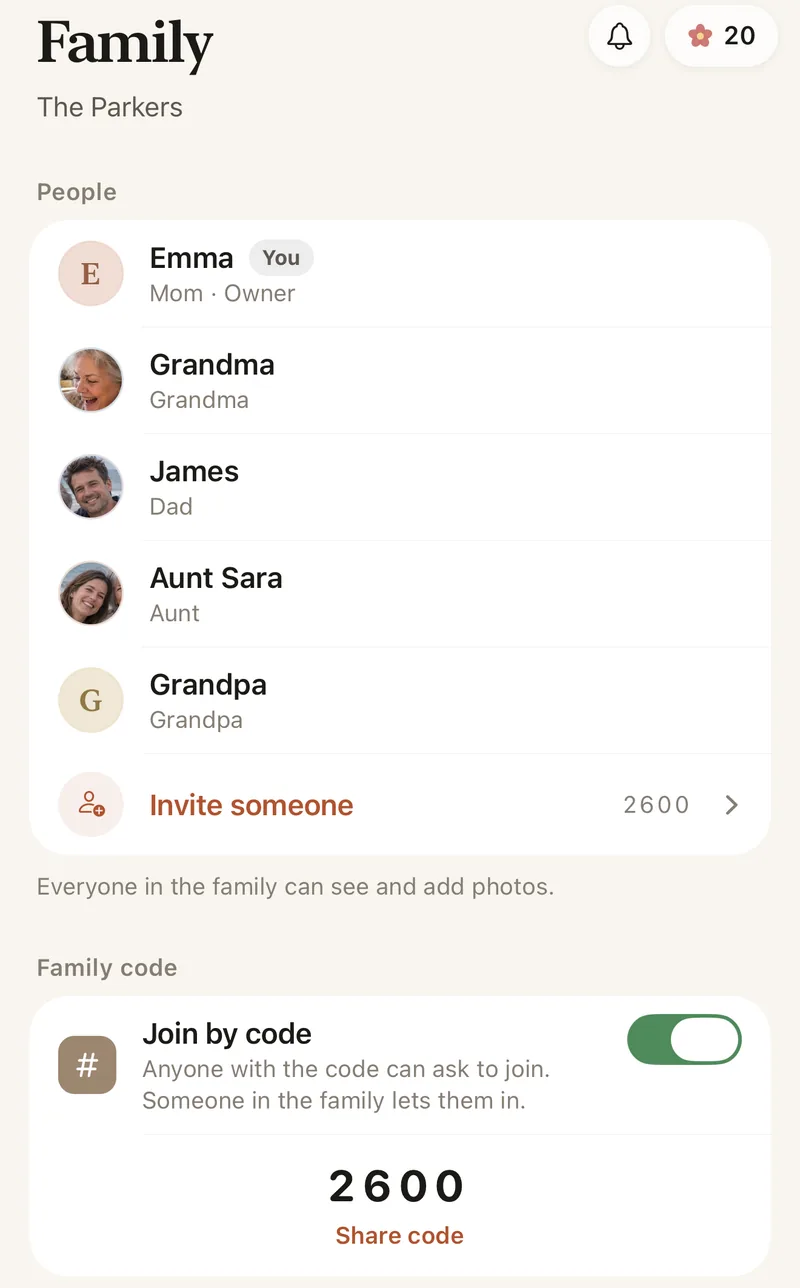
Lumo is a shared album made for one family, on iPhone, iPad and Android. Name the album, add photos, and invite the family with a private link or a 4-digit family code. Everyone can add photos and videos, and nobody else can see them.
Inside it, make smaller albums such as “Baby Noah” or “Our trips”. Their photos stay in the family album too.
- The same on every phone
- Unlimited photos and videos, free
- No public links, no ads
Which one suits you?
iCloud suits a group that’s all on Apple, with iCloud storage to spare. Google Photos suits people already backing up to Google. A family album suits a family that wants one private place for everyday photos and long videos, on any phone, without paying for storage.
Family photo apps comparedHow to create a shared family album in Lumo
- Download LumoFree on the App Store and Google Play.
- Name your albumSign in and give your family album a name.
- Add photosPick photos and videos from your phone.
- Invite everyoneSend a private link, or share your 4-digit family code.
Questions
Can other people add photos to a shared album?
In all three, yes. iCloud and Google Photos let the people you invite add photos, and in Lumo everyone in the family album can add photos and videos.
Is a shared album private?
It depends on the link. A Google Photos link can be opened by anyone who has it, and an older iCloud album can be published as a public website. Lumo has no public album link: people join with an invite, or a family code that someone in the family approves.
How does Lumo keep our photos safe?
Photos are encrypted in transit and at rest, and only signed-in members of your family album can open them. Invite links stop working after 30 days, a family code only asks to join, and you can turn the code off or remove someone at any time. There are no ads, and we don’t sell your data.
Is Lumo really free?
Yes. The album, unlimited photos and videos, inviting family, hearts and comments are all free. Lumo Pass is optional, for unlimited magic, full-length videos and saving originals. Unlimited means unlimited for everyday family use, under fair use.
Where do these steps come from?
From Apple’s and Google’s own help pages, checked in October 2026. Menus can move a little between app versions.
Start your family album.
Free. Private to your family. No ads, ever.