
Clubs and workshops
One album for the photos everyone took.
To share photos with your club, create one shared album, choose who can open it and let participants add their own photos. Start with a service the group already uses. For an adult drawing class, cooking workshop, choir or sports club, the useful result is the same: everyone can find the session’s photos without searching through a conversation.
Last updated
Lumo is a free, private family album for iPhone, iPad and Android. Send one link and the whole family can join.
Invited to a Lumo album? Open it in any web browser: app.lumomagic.com
Choose a method the group can use
Check both viewing and uploading before choosing. A link that lets someone look at photos may not let them add their own.
- Google Photos: create a shared album and enable contributions. Check the member list and link-sharing settings before sending it to the group.
- LINE: if everyone is already in the group chat, create an album from the chat menu and add the session’s photos there.
- A shared folder: useful when you need to collect photo files alongside workshop documents. Check who can view, upload or delete files.
Give each session a clear home
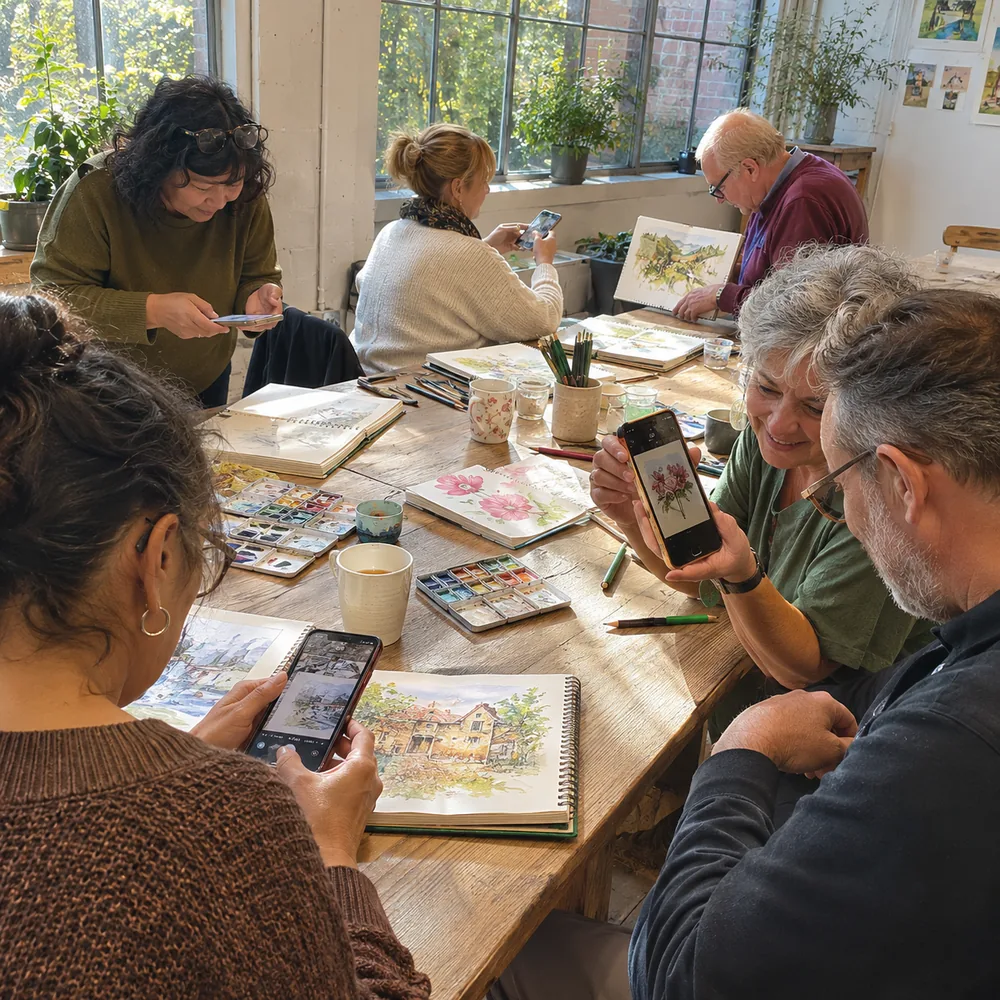
Name the album after the activity and date, such as “Watercolour workshop — 10 November”. Keep separate participant groups in separate albums.
For drawings or craft projects, photograph each piece in even light, with the camera facing it squarely. Ask the maker before sharing their work, and include their name only if they want it shown.
Agree who will see the photos
Tell participants who can open the album before anyone adds photos. Share the link or QR code through the group’s existing channel, and ask members to keep it within the group.
Sharing within the club is separate from using a photo on a public website or social account. Ask the photographer, the maker of any featured artwork and the people pictured before sharing it more widely.
Where Lumo fits
Lumo is a private family photo album with event albums for groups. Create a separate event album for the club session or workshop, then share its invitation link or QR code with participants.
Participants can join in a browser, sign in and add photos from their own phones. They do not need to install the app. Photos in the event album are shared with its members; nothing is public. Keep the invitation within the intended group.
Set up the group album
- Create one albumUse the activity and date as its name, and choose who can view and contribute.
- Test it as a participantOpen the invitation on another phone and try viewing and adding one test photo.
- Share the invitation oncePut the link in the existing group conversation, or show the QR code at the session.
- Let people choose what to addInvite participants to share photos or artwork they want the group to see. Taking part is optional.
Questions
Can a group with iPhone and Android share one album?
Yes. Choose a service that supports both, and test adding a photo from each before the session. Lumo participants can join and add photos through a browser.
Can we share photos of artwork as well as the session?
Yes. Photograph the work clearly and ask its maker before adding it. Keep each workshop group’s photos together so participants know which album to open.
Does a private album prevent someone from sharing a copy?
No. Someone who can view a photo may be able to save it or take a screenshot. Agree to keep photos within the group and ask separately before using them elsewhere.
Start your family album.
Free. Private to your family. No ads, ever.