
Year in review
Your family’s year in photos, from everyone’s phones.
To make your family’s year in photos, first gather everyone’s photos into one shared album: send the family one link and ask them to add their favorites from the year within a week. Then pick the best together with hearts, put them in an album for the year, and make the slideshow, video or photo book from that. The recap a phone makes for you uses only that phone owner’s photos; the family’s year is on everyone’s.
Lumo is a free, private family album for iPhone, iPad and Android. Send one link and the whole family can join.
Invited to a Lumo album? Open it in any web browser: app.lumomagic.com

Why one phone’s recap misses half the year
Every December, photo apps make each person a recap of their year. Google Photos Recap, for example, is made from one person’s own library: their top people, their places, how many photos they took. It’s a recap of what you photographed.
A family’s year is spread across many phones. Grandma took the birthday photos, your brother took the ones from the holiday, a cousin has the only photo with everyone in it. None of those are in your recap, and most were never sent to you at all.
So start by getting the photos in one place. Then any recap, slideshow or book you make shows the whole family’s year.
Step 1: one album and one message
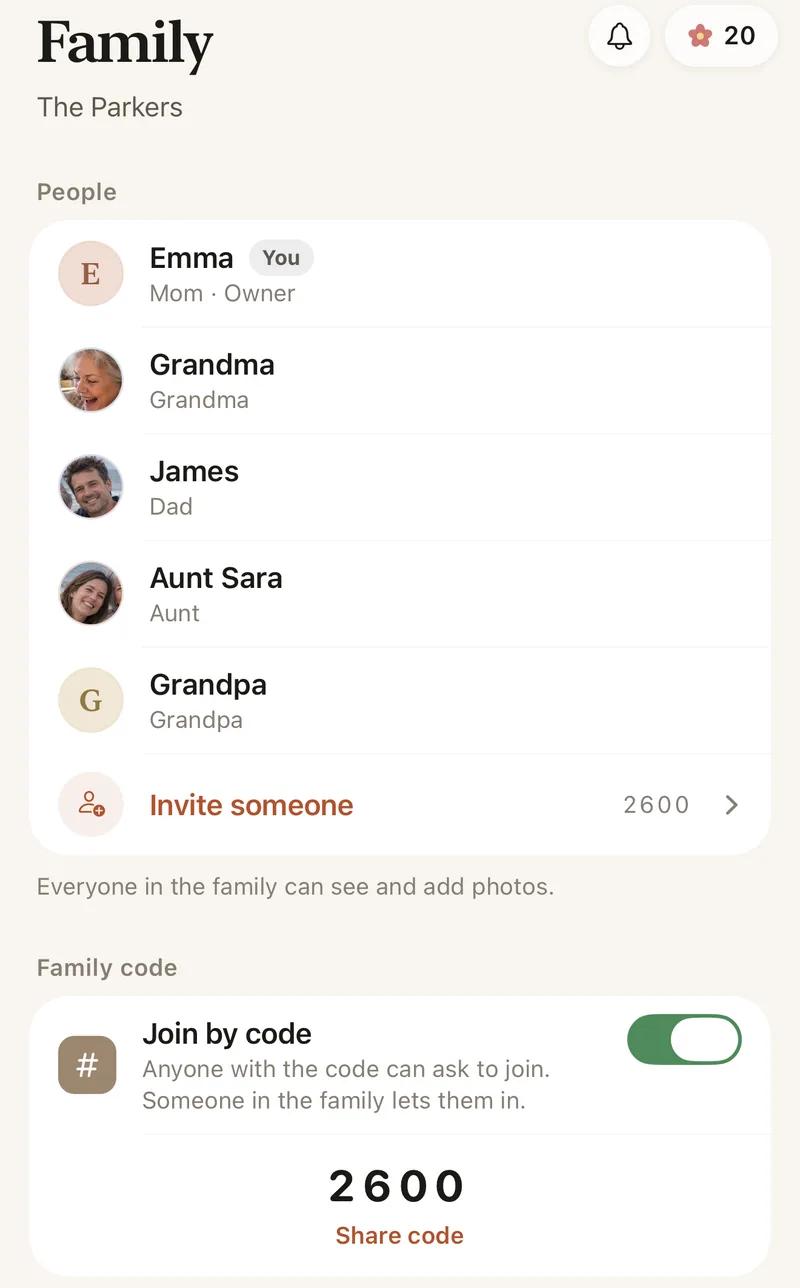
Make one private album for the family, or use the one you already have. In Lumo, start a family album, then in the Family tab tap Invite someone and send the link to the family group chat. Anyone without the app can open it in their browser at app.lumomagic.com.
Then ask once, with a clear date. For example: “I’m putting together our family’s year in photos. Could you add your favorite photos and videos from this year to our family album by Sunday? Here’s the link.”
- Give a deadline about a week away. Without one, “I’ll send them later” becomes February.
- Ask for favorites, not everything: ten or twenty photos each is plenty.
- Ask the people who took the most photos by name, especially grandparents, who often have the best ones.
Step 2: everyone adds their year
Each person adds photos and videos from their own phone, in full quality. Lumo puts every photo on the day it was taken and groups them by month, so the year lines up on its own, January to December, whoever took it.
Photos already in the album are skipped, so nobody adds the same one twice. A photo with the wrong date, such as one saved from a chat, can be given the right one.
How to organize family photos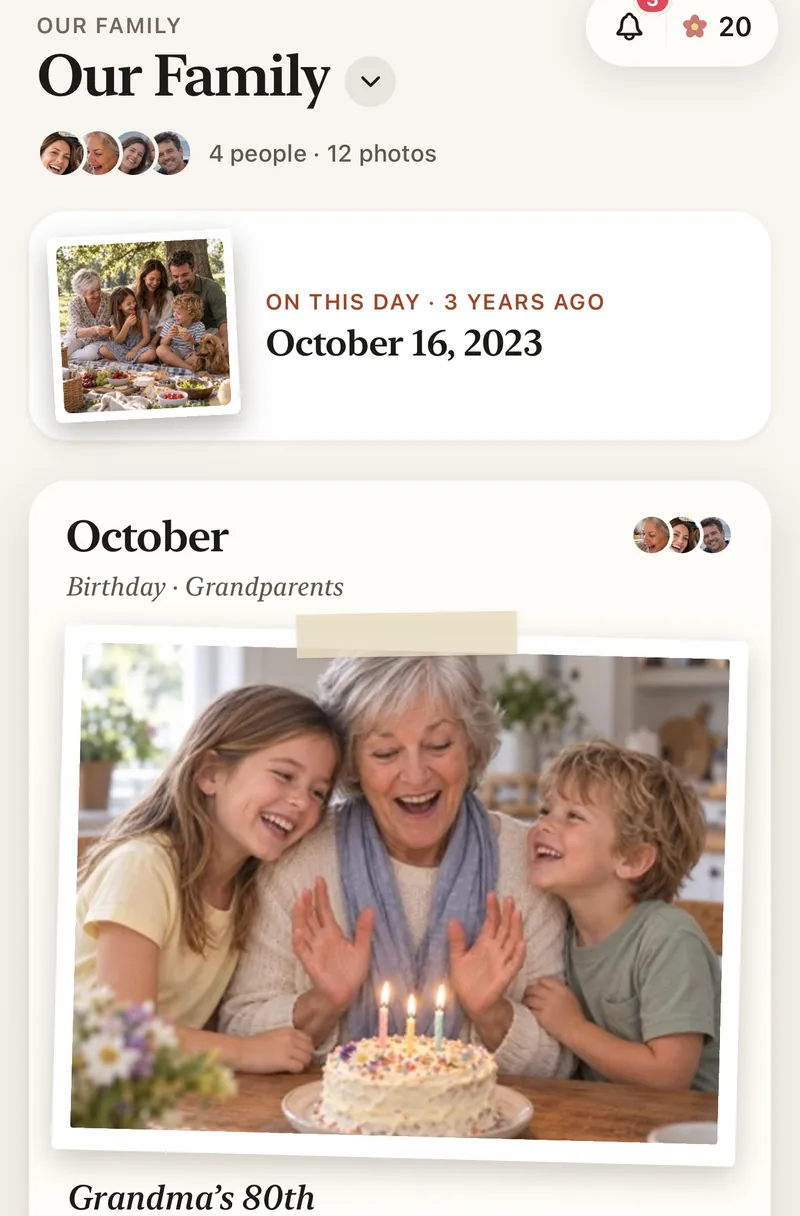
Step 3: pick the best together
Choosing is more fun when the family does it. Everyone can heart the photos they love and comment on them, so the favorites show themselves, and someone always remembers the story behind a photo.
Make an album inside the family album for the year, for example “Our year”, and add the best photos to it with Add to album. They stay in the family album too. Tags such as Birthday or Grandparents make them easy to find again.

Step 4: make the recap with what you have
With the year’s best photos in one album, the recap is the easy part. Save the photos you picked to your phone, then use whatever you like making things with:
- A slideshow or short video in your phone’s own Photos app, or in a video editor, set to a song the family likes.
- A year-in-review photo book, using a photo book service’s template, with a page or two for each month.
- A single collage of the twelve best photos, one for each month, for the family chat or the first message of the new year.
- Or simply the album itself: open “Our year” together on a tablet over the holidays.
Next year, it’s already done
Once the family adds photos as they happen, next December’s year in photos is already in the album, in order, with everyone’s photos in it. On This Day also brings back photos from the same day in years past.
Only the people you invite can see the album. Nothing is public, there are no ads, and you can remove anyone at any time.
Set up the family album for your parentsHow to make your family’s year in photos
- Make one family albumFree, on iPhone, iPad, Android or in a web browser.
- Send one link with a deadlineIn the family group chat: your favorites from this year, by Sunday.
- Everyone adds their photosFrom their own phone, in full quality, sorted by date taken.
- Pick the best togetherHearts and comments, then an album for the year.
- Make the recapA slideshow, a video or a photo book from the photos you picked.
Questions
Why aren’t my family’s photos in my phone’s year recap?
Recaps such as Google Photos Recap are made from the photos in your own library. Photos your family took on their phones aren’t in it unless you have them too. Gather everyone’s photos in one album first, then make the recap from that.
When should I ask the family for their photos?
In early December, so the recap is ready for the holidays, or right after New Year, when many families make their year-in-review book. Give a deadline about a week away.
Does everyone need to install an app?
No. Relatives can open the invite link in their browser at app.lumomagic.com and sign in with Apple, Google or email. The free app works too, on iPhone, iPad and Android.
Will we end up with the same photo twice?
No. When someone adds photos, Lumo skips any that are already in the album.
Is Lumo free?
Yes. The family album, adding photos and videos, inviting the family, hearts and comments are all free.
Who can see our photos?
Only the people in your family album. Nothing is public, there are no followers, and photos are never shown to anyone outside your family.
Start your family album.
Free. Private to your family. No ads, ever.