
For the person who was invited
How to join your family’s album.
Someone in your family has invited you to their private photo album. To join, tap the link they sent you, or type their 4-digit family code into Lumo, and sign in with the account your phone already uses. It works in the app, or in any web browser at app.lumomagic.com. Each step below names the exact button to tap.
Last updated
Lumo is a free, private family album for iPhone, iPad and Android. Send one link and the whole family can join.
Invited to a Lumo album? Open it in any web browser: app.lumomagic.com

First: what did they send you?
- A link in a message or an email: follow “You got a link”.
- Four numbers, the family code: follow “You got a 4-digit code”.
- No app, or you’re on a computer: follow “In a web browser”.
You got a link
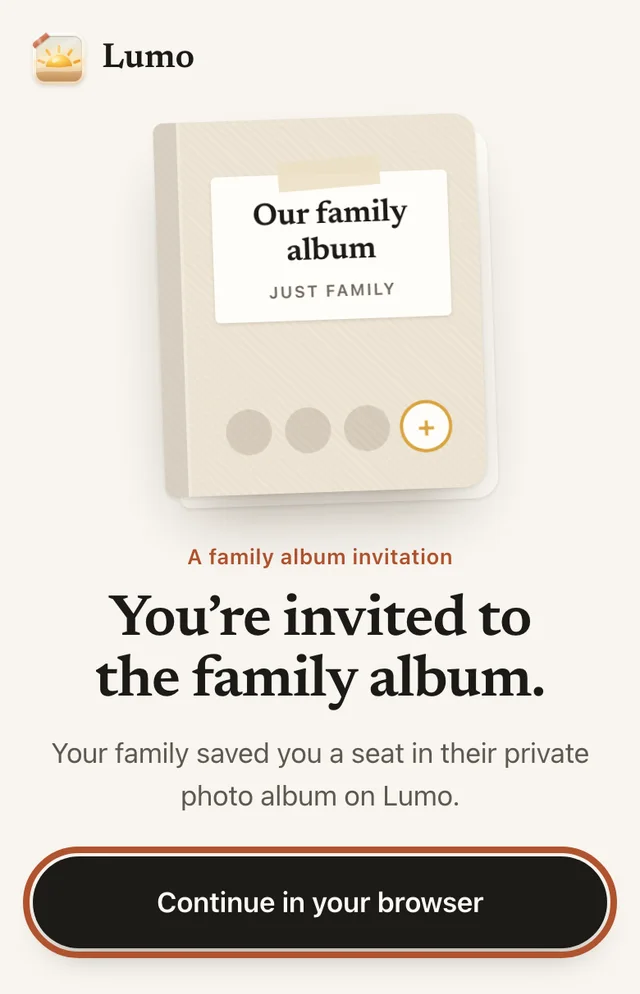
- Tap the link in your message. A page opens that says you’re invited.
- Tap “Continue in your browser”. There’s nothing to install.
- Tap “Create an account”. If you’ve used Lumo before, tap “I have an account”.
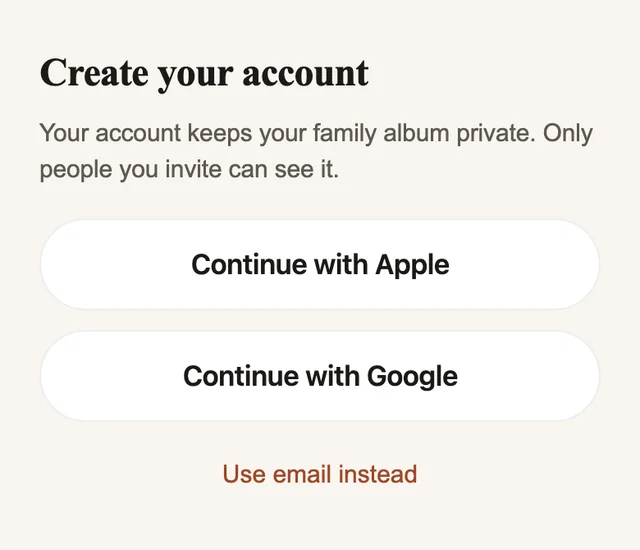
- Tap “Continue with Apple” or “Continue with Google”, the account your phone already uses. Or tap “Use email instead”.
- The album opens. If the family lets each new person in, you see “Request sent” first.
Prefer the app?
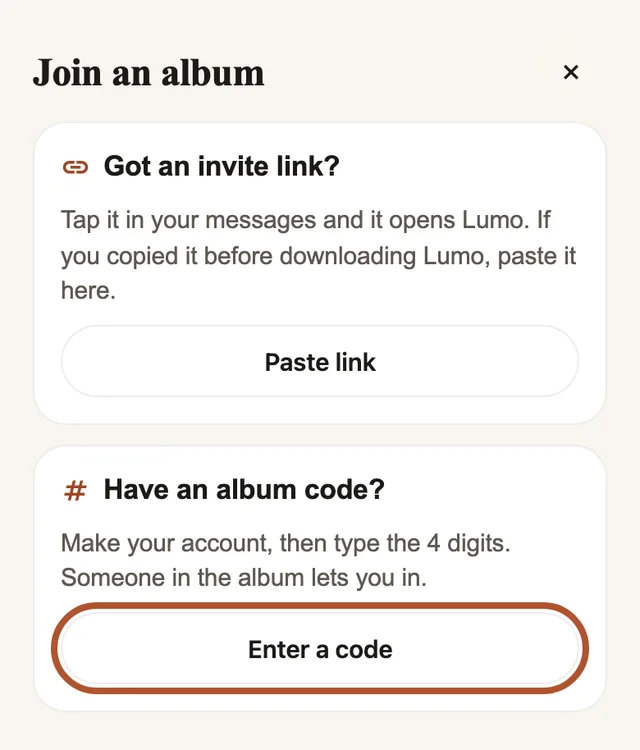
On the same page, get Lumo from the App Store or Google Play, and open it. Tap “Joining an album? Use an invite or code”, then “Paste link”. Or tap the link in your message again.
You got a 4-digit code
- Open Lumo on your phone or tablet, or go to app.lumomagic.com in a web browser.
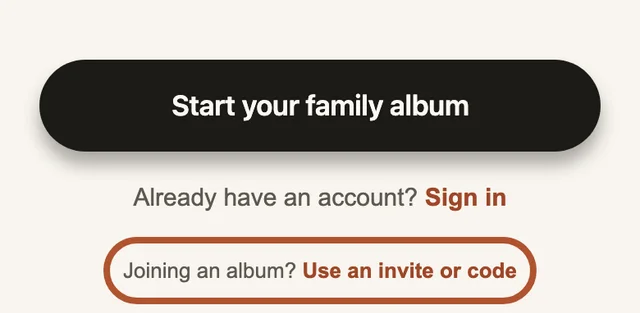
- At the bottom of the screen, tap “Use an invite or code”, after “Joining an album?”.
- Under “Have an album code?”, tap “Enter a code”.
- Sign in: “Continue with Apple”, “Continue with Google” or “Use email instead”.
- Type the 4 digits. Then type your name, the way the family will see it.
- Tap “Ask to join”. You see “Request sent”.
In a web browser, with nothing to install
On a phone, a tablet or a computer, open the web browser and go to app.lumomagic.com. You see the same screens and the same buttons as in the app.
With a code, tap “Use an invite or code” at the bottom and follow the steps for a code. With a link, just tap the link: it opens in the browser too.
To look again later, open app.lumomagic.com in the same browser.
Signing in
Lumo asks you to sign in once, so that only your family can see the album. Choose the account your phone already uses: “Continue with Apple” on an iPhone or iPad, “Continue with Google” on Android. There’s no new password to make up.
With “Use email instead”, Lumo first sends you an email. Open it, tap the link inside, and come back.
Then the family lets you in
With a family code, someone in the family lets you in, so the album stays private. You see “Request sent”, and the album opens as soon as they approve. There’s nothing else to do.
In the app, Lumo tells you when you’re in. In a browser, you can close the page and open app.lumomagic.com again later.
With a link, you’re usually in straight away.
Once you’re in
- Scroll to see the family’s photos and videos.
- Tap a photo to see it large.
- Tap the heart, or write a comment. The family sees it right beside the photo.
- Add your own photos with “Add”, whenever you like.
If something doesn’t work
- “This invite has ended”: links stop working after 30 days, or once they’re used. Ask for a new link, or for the 4-digit family code.
- You can’t remember your Apple or Google password: it’s the account your phone signs in with. Ask whoever set up the phone.
- You chose email and nothing arrived: look in your inbox and in the spam folder for the email from Lumo.
- The code isn’t accepted: check the 4 digits with the family. They may have made a new code.
A sheet to print
One page with these steps in large type, boxes to write in the family album’s name and the 4-digit family code, and a line for who to ask if you get stuck. Its QR codes open this page, and Lumo in the browser. It prints well in black and white.
Joining steps, A4 (PDF) · Joining steps, US Letter (PDF)
Setting up a parent? Fill it in, and leave it by the phone or send it with a card.
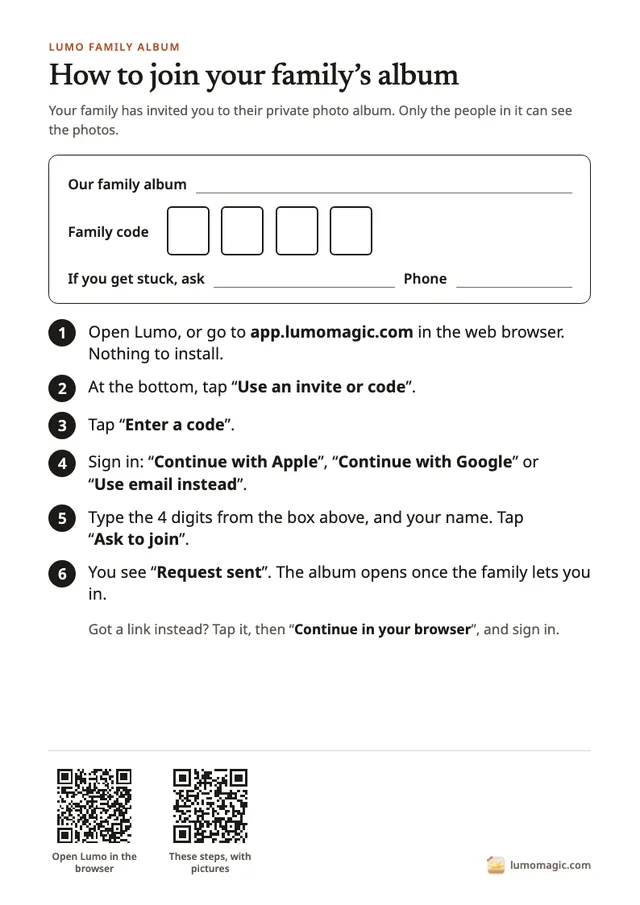
How to join your family’s album
- Tap the link, or open LumoOr go to app.lumomagic.com in any web browser.
- Choose how you join“Continue in your browser” with a link, “Enter a code” with a code.
- Sign inWith the Apple or Google account your phone uses, or with email.
- Type the code, if you have oneThe 4 digits, then “Ask to join”.
- Open the albumStraight away with a link, or once the family lets you in.
Questions
Do I need to install an app?
No. You can join and look at the photos in any web browser at app.lumomagic.com, on a phone, a tablet or a computer. The app works the same way, if you prefer it.
Do I need a new password?
No. Sign in with the Apple or Google account your phone already uses. Only with email do you choose a password.
What is the family code?
Four digits that belong to your family’s album. Typing it asks to join, and someone in the family lets you in. Ask the family for it, or for an invite link.
Why do I wait to be let in?
So that only people the family knows can see their photos. Someone in the family lets you in, and the album opens as soon as they do.
Who can see the photos?
Only the people in the family album. Nothing is public, there are no followers and there are no ads.
Start your family album.
Free. Private to your family. No ads, ever.