
Keeping family photos safe
Dropbox inactive account: keep your family photos before 1 January 2027.
Dropbox inactive account? Keep your family photos safe before Dropbox’s updated terms take effect on 1 January 2027: Dropbox may close (terminate) non-paying accounts after 6 consecutive months without activity, after sending notice first. Paid plans are not affected. Sign in now, save the folders you want to keep, and move shared family photos to one album everyone can reach.
Last updated
Lumo is a free, private family album for iPhone, iPad and Android. Send one link and the whole family can join.
Invited to a Lumo album? Open it in any web browser: app.lumomagic.com

What changes on 1 January 2027
On its Terms of Service and Privacy Policy updates help page (checked 27 November 2026), Dropbox states: “We’ve changed the time period of inactivity required before we may terminate non-paying accounts to 6 consecutive months. We’ll continue to provide notice before doing so.”
The updated terms take effect on 1 January 2027. Paid Dropbox plans are not affected by this inactivity rule.
- Applies to non-paying (free) Dropbox accounts after 6 consecutive months of inactivity.
- Dropbox says it will continue to provide notice before closing (terminating) an inactive account.
- Paid Dropbox plans are not affected by this rule.
- From 1 January 2027, Dropbox also states that users must be at least 18 years old.
What counts as activity
Dropbox’s summary does not say what counts as activity. Rather than guessing whether a synced folder or an old link counts, sign in to your Dropbox account directly and check the email address linked to it for any notice from Dropbox.
If your family has more than one free Dropbox account—for example, an older email address created years ago to share holiday folders—check each account and inbox separately, and follow the instructions in Dropbox’s notice.
How to keep your family’s photos
Before 1 January 2027, work through these steps so no family folder is left behind in an unused free account:
- Sign in now: open Dropbox in a web browser or app with each free account you use, and check its inbox for any notice from Dropbox.
- Download your photo folders: save the folders you want to keep to your computer, an external drive or your phone, then open a few photos and videos to check that they downloaded cleanly.
- Check shared folders with relatives: if another family member owns a free Dropbox folder holding family photos, let them know about the 1 January 2027 rule so they can sign in and download their copy too.
- Move shared family photos into a shared family album: a single person’s free cloud folder is easy to leave untouched for six months. Putting family photos in one shared album means everyone opens it and keeps adding to it.
Where Lumo fits: one private album for the family
Lumo is a private shared family photo album on iPhone, iPad, Android and in any web browser at app.lumomagic.com. Everyone you invite adds photos and videos to one album, with no ads and no public feed. Storing unlimited family photos and videos is free under fair use, and Lumo keeps the originals in your album.
Lumo cannot import directly from Dropbox: download your folders from Dropbox first, then add them to Lumo on a computer at app.lumomagic.com or up to 30 at a time in the app. Lumo skips photos already in the album so nothing appears twice. Free photo downloads from the album are compressed copies; downloading untouched originals and playing full-length videos require the optional Lumo Pass, and one Pass covers the whole family.
How free unlimited family photo storage works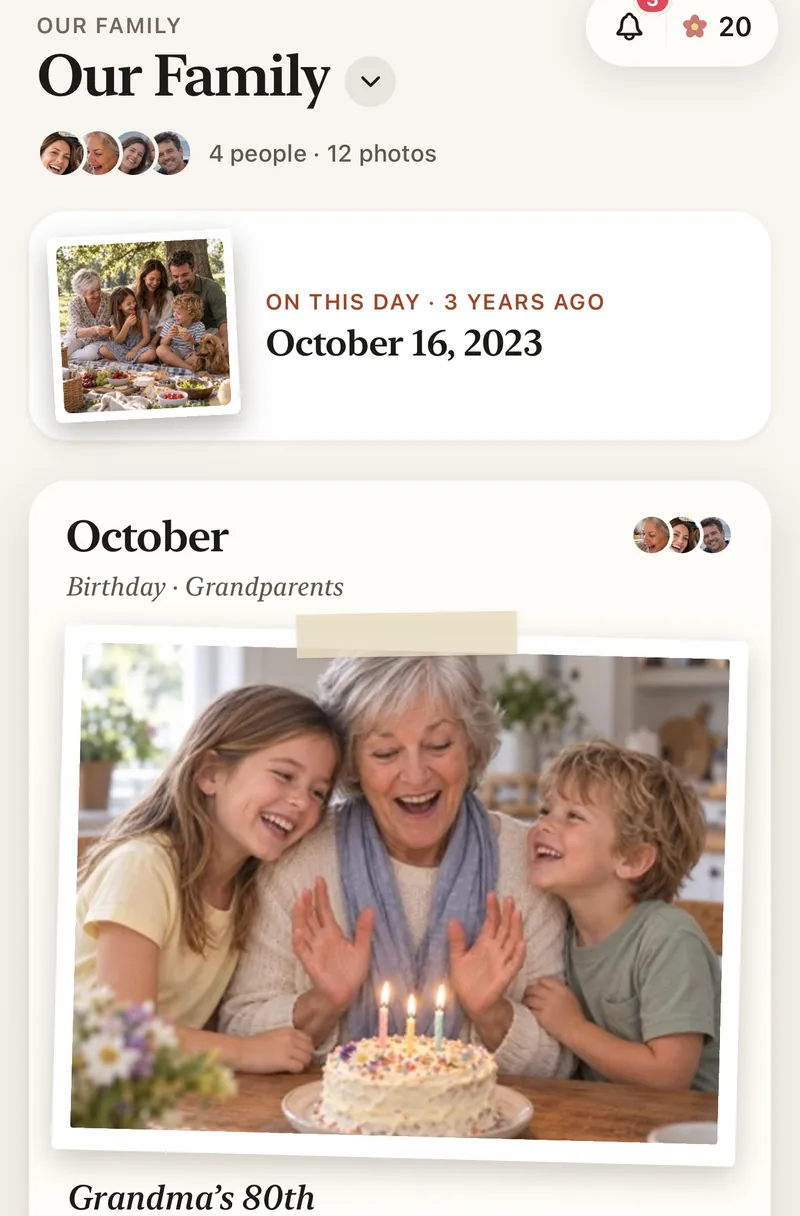
Where these facts come from
Dropbox Help Center: Terms of Service and Privacy Policy updates, checked 27 November 2026.
Dropbox is a trademark of Dropbox, Inc. Lumo is not affiliated with or endorsed by Dropbox.
Keep your family’s Dropbox photos safe
- Sign in to DropboxSign in to each free Dropbox account you have and check its linked email inbox for any notice from Dropbox.
- Download your foldersSave your family photo folders to your computer or drive, then open a few photos and videos to verify them.
- Add them to a shared albumOpen Lumo on iPhone, iPad, Android or at app.lumomagic.com and upload the downloaded folders.
- Invite the familyShare one private invite link or 4-digit family code so everyone can see the photos and add their own.
Questions
Does Dropbox close inactive free accounts?
From 1 January 2027, Dropbox’s updated terms state that it may close (terminate) non-paying accounts after 6 consecutive months of inactivity, after providing notice first. Paid Dropbox plans are not affected by this rule.
Will Dropbox send notice before closing an inactive account?
Yes. Dropbox’s help page states that it will continue to provide notice before terminating a non-paying account for inactivity. Check the email address on your Dropbox account so you do not miss it.
What counts as activity on a free Dropbox account?
Dropbox’s summary does not say what counts as activity. Sign in to your Dropbox account directly, check any notice from Dropbox, and download local copies of the photos you want to keep.
Can Lumo import directly from Dropbox, and are original downloads free?
No to both. Download your folders from Dropbox to your computer or phone first, then upload them to Lumo. Keeping unlimited family photos and videos in the album is free under fair use and originals are stored, while downloading untouched originals and playing full-length videos require the optional Lumo Pass.
Start your family album.
Free. Private to your family. No ads, ever.