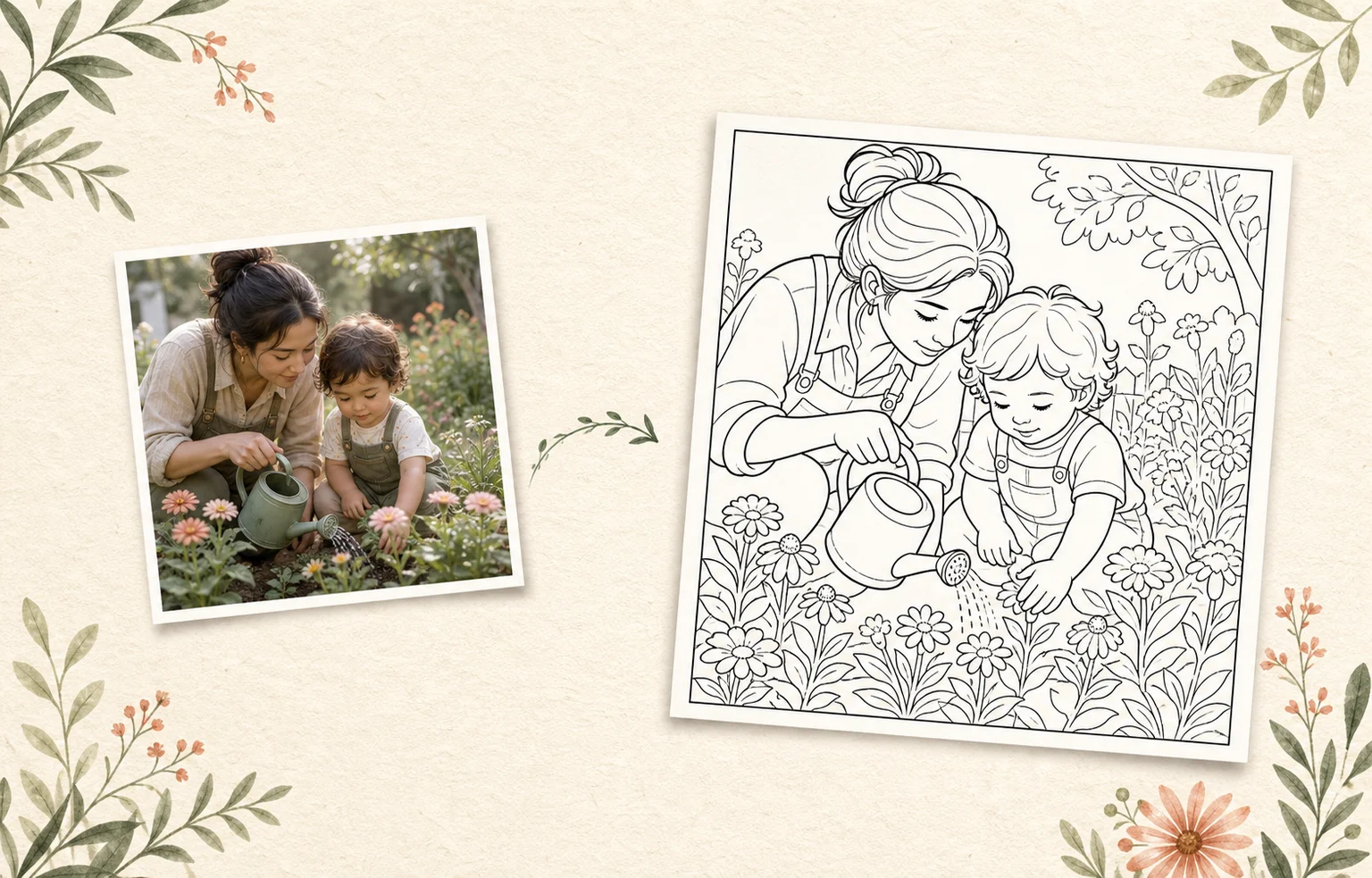
Start with one recognizable subject
Choose a photo where the person, pet, or object is easy to identify at a glance. A close or medium-distance photo usually gives the printable more room for useful facial features and familiar details.
A busy group photo can still work, but every extra face and object competes for line space. If the moment matters more than the full scene, crop around the part people will recognize first.
- The main subject is not tiny
- Important faces are not covered
- The subject is separated from the background
Use light and contrast to preserve the moment
Even light is easier to interpret than a dark face against a bright window. Look for a photo where eyes, hair, clothing, fur markings, or the main object remain visible without heavy shadows.
The goal is not photographic perfection. It is enough visual separation for the finished black outlines to keep the character of the original moment.
- The subject is well lit
- The background does not merge into the subject
- The important expression or markings are visible
Tune the page for the person who will use it
Use lighter detail and broader lines when you want larger open spaces. Keep richer detail when the setting is part of the memory, but check that small decorations do not overwhelm the main subject.
Lumo lets the caregiver choose the activity type, style, line weight, detail, background, and paper size. Review the finished page before printing; generation is a creative interpretation, not an exact trace.
- The main shapes are easy to follow
- Open areas are large enough to color
- The page still feels like the original moment
Print a test before making several copies
Open the native iOS print sheet and print one page first. Check the physical margins, line clarity, and paper orientation before preparing more copies for a birthday table, classroom, or family gathering.
Apple recommends that the iPhone or iPad and an AirPrint-enabled printer are connected to the same Wi-Fi network. Available paper and copy options depend on the printer and the system print sheet.